
How to Unlock and Set APN for Your Scarlet Plan Modem
*Please complete all steps in chronological order to get your MR1100 working on the Scarlet Plan*
To Unlock:
- Make sure your modem is powered down, remove your current sim (it will be deleted) and insert your Verizon marked sim.
- Power on the MR1100
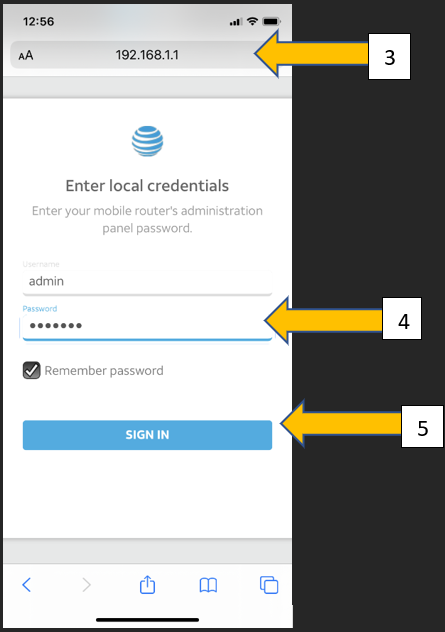
- On a device connected to your MR1100, such as a cell phone or tablet, open a web browser and enter 192.168.1.1 or 192.168.5.1 or http://attwifimanager in the address field to enter the Wi-Fi Manager.
- The Username is populated automatically. Enter the password. (The default password is attadmin or kpadmin)
- Press SIGN IN
- When prompted at the top right, click unlock device and enter the 8-digit unlock code provided by technical support.
- Do NOT click “activate”, this will try to have you set a sim password
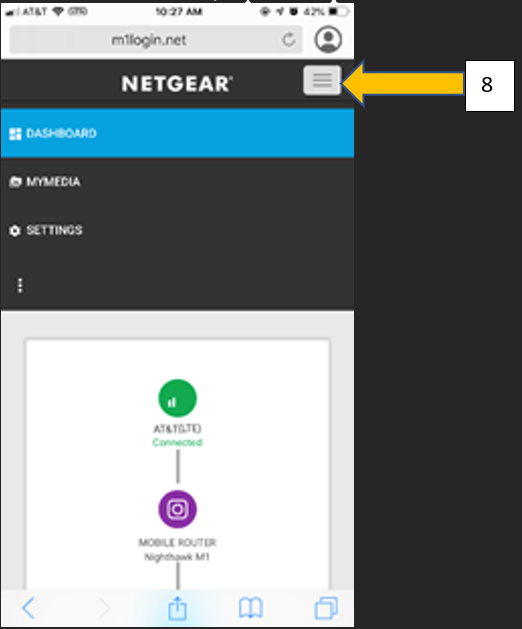
- To now set the APN, tap the triple dash icon in the upper right corner.
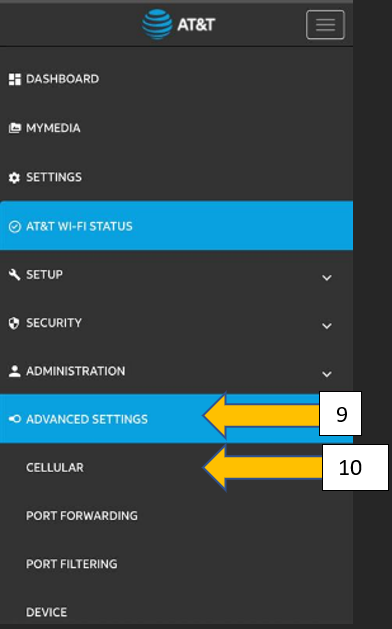
- Select advanced setting
- Select cellular
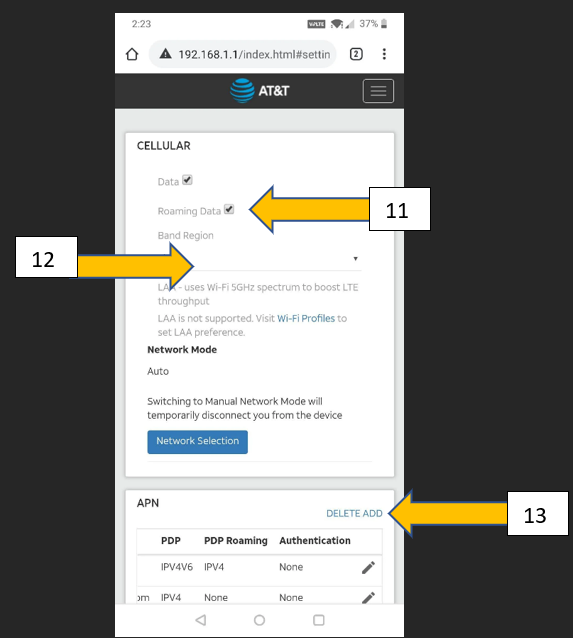
- Roaming Data – Check the box
- Band Region- This should be set to "LTE All"
- Click "ADD" APN
- Enter the information below in the fields as follows:
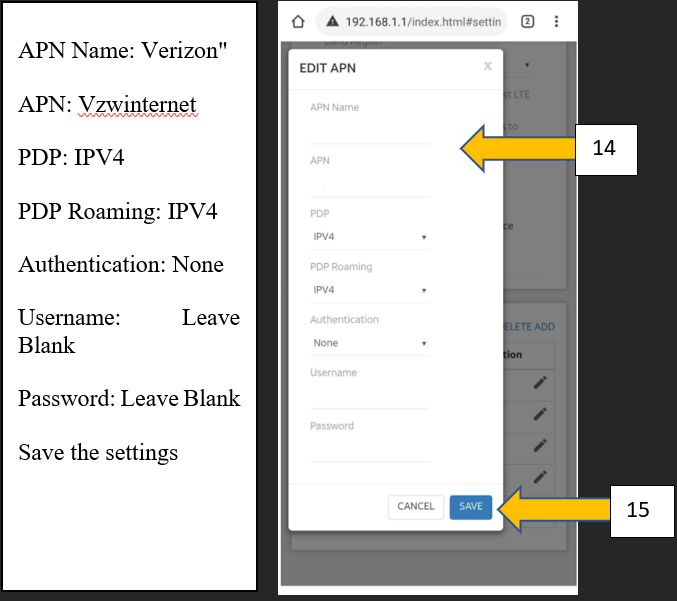
- Press “SAVE”
- Make sure that you select the new updated APN as "Active"
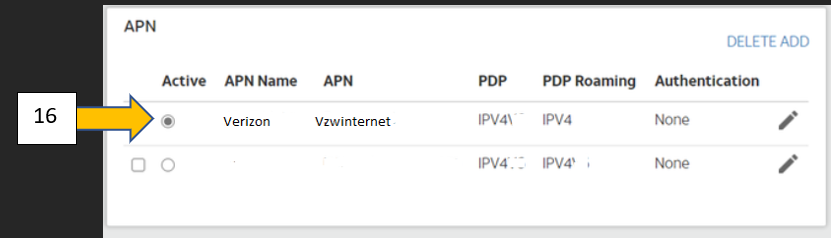
- Power your device off for a full 60 seconds, then power back on and verify your wifi is working.
* For any issues unlocking the modem, email Support@kpevo.com for assistance. *
Comments
0 comments
Article is closed for comments.